Getting Started
This page introduces the handful of concepts that every other page in these docs assumes you already know: organizations, the roles people have inside one, balances, and tags. Read this first.
Organizations
Everything in Shula happens inside an organization (or "org") — a sports club, team, or gym. An org is the container for all of its own sessions, events, announcements, memberships, and players. If you belong to more than one club that uses Shula, you'll belong to more than one org, each with its own schedule and settings.
Roles
Every person in an org has one of three roles: Player, Coach, or Admin.
- Players are the members who use the app day to day — they see the schedule, RSVP to sessions and events, read announcements, and keep track of what they owe.
- Coaches are a distinct, assignable role in between Player and Admin — an org's admin can label a member as a coach to mark them as staff. As of this writing, though, a coach has exactly the same access as a player to everything covered in this guide: recurring sessions, events, announcements, memberships, and payments are all configured by Admins only, not Coaches. The web app does show coaches the fuller admin-style navigation, but every actual configuration screen still requires the Admin role underneath it, so a coach who opens one is turned away the same as a player would be.
- Admins are the people who configure the org — they create recurring sessions and events, send announcements, set up membership plans, and manage payments. Every "admin" instruction in this guide means the Admin role specifically, never Coach.
The same person can hold a different role in each org they belong to. Within a single org, what you can see and do depends on which role you hold there.
Navigation looks different depending on your role and which client you're using:
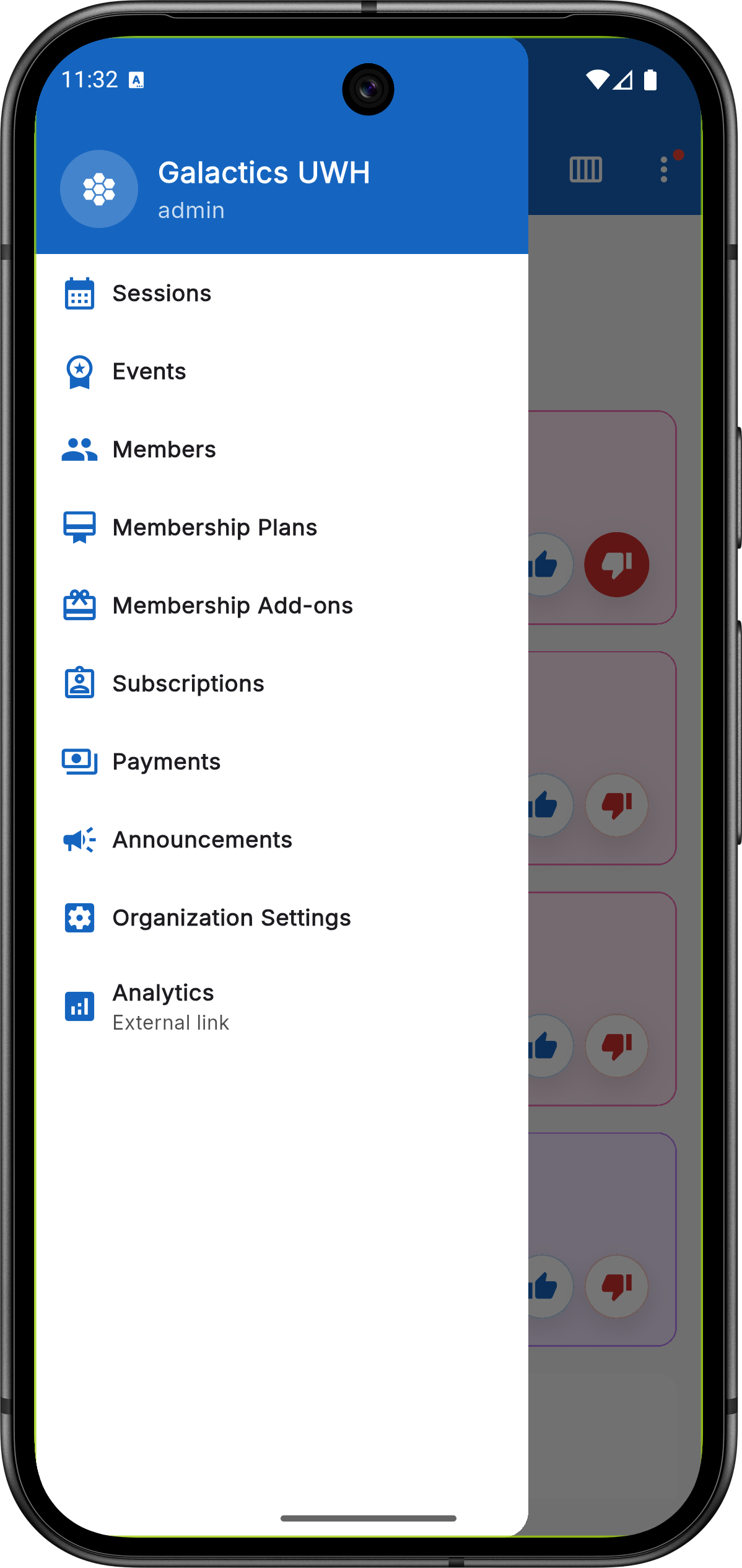
Mobile app — the admin drawer menu (Sessions, Events, Members,
Membership Plans, Membership Add-ons, Subscriptions, Payments,
Announcements, Organization Settings, Analytics).
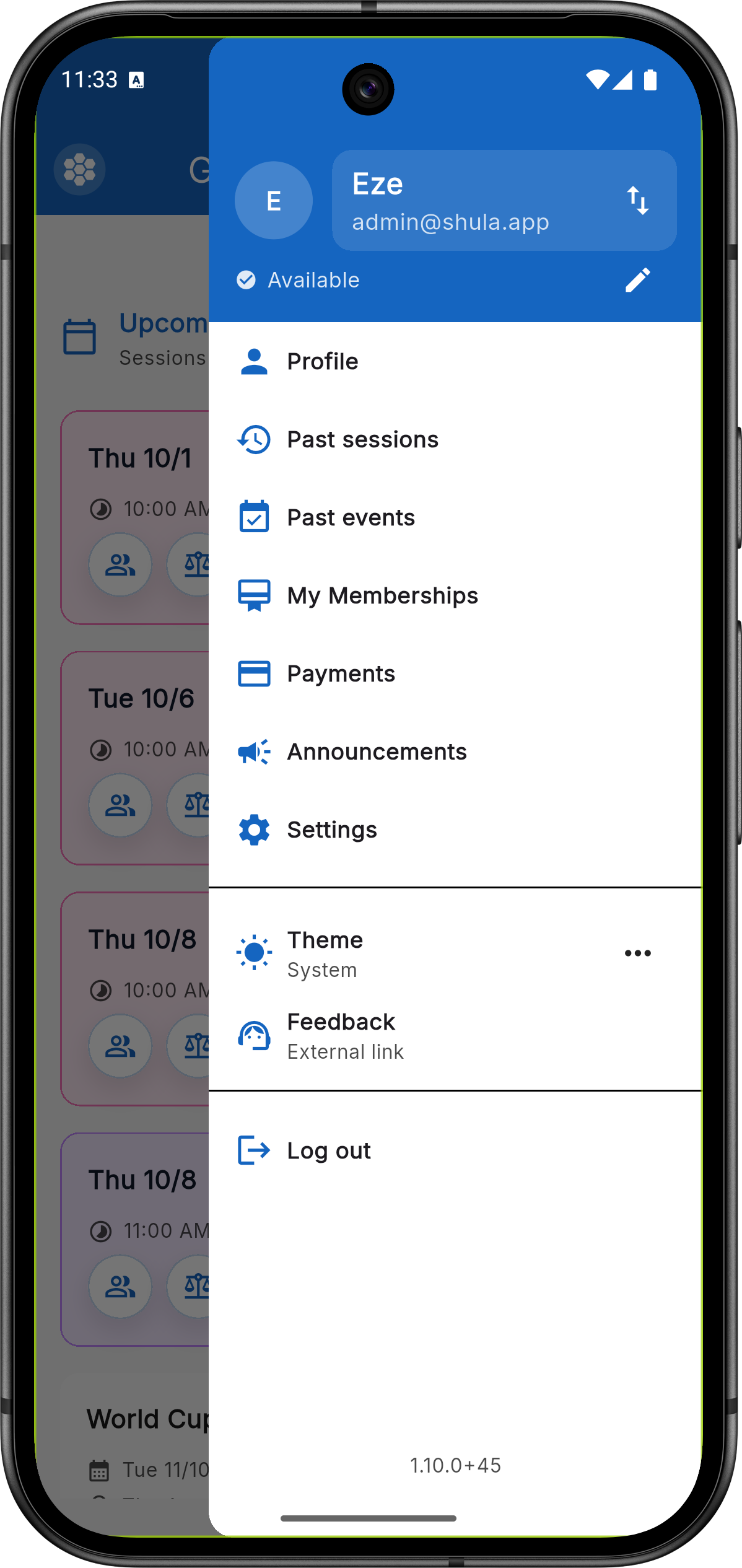
Mobile app — the player drawer menu (Profile, Past sessions, Past
events, My Memberships, Payments, Announcements, Settings).
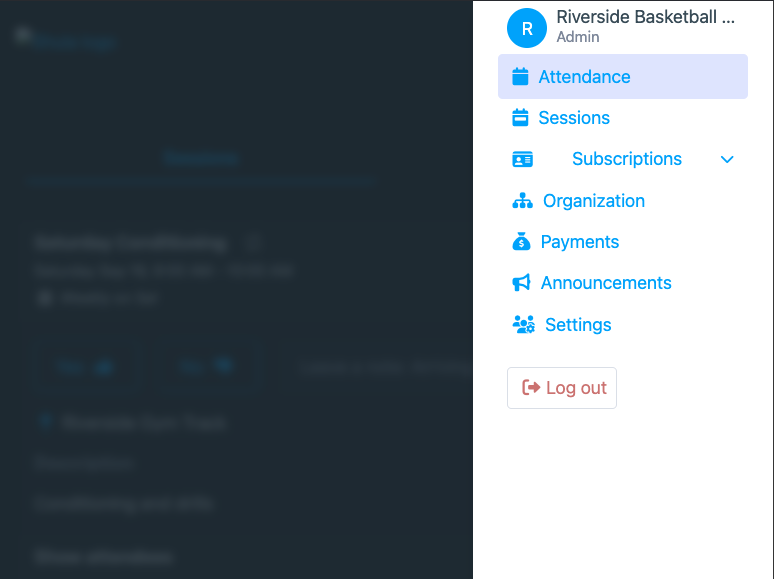
Web app — the navigation bar shown to admins (and coaches, who see
this same nav even though most of it is blocked for them).
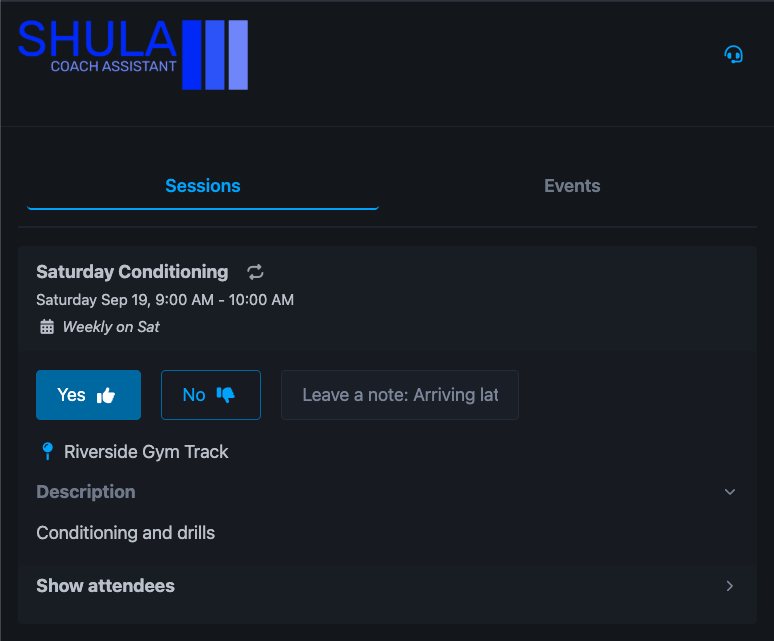
Web app — the simplified header shown to players.
Accounts and profiles
You sign in with an account (your email), and an account can hold several profiles. A profile is the identity the org actually sees: it has its own name, role, tags, balance, and attendance. This is how a parent can manage their children, or one person can belong to more than one group, without needing a separate login for each.
On the mobile app, tap your name at the top of the drawer menu to open the profile switcher. It lists every profile on your account, with the org(s) each one belongs to, and the active one is checked. Tap another profile to switch to it. Add profile at the bottom asks for a name and a gender, creates the profile, and switches to it right away. A new profile joins the org you're currently in as a Player; an admin can change its role from the members list.
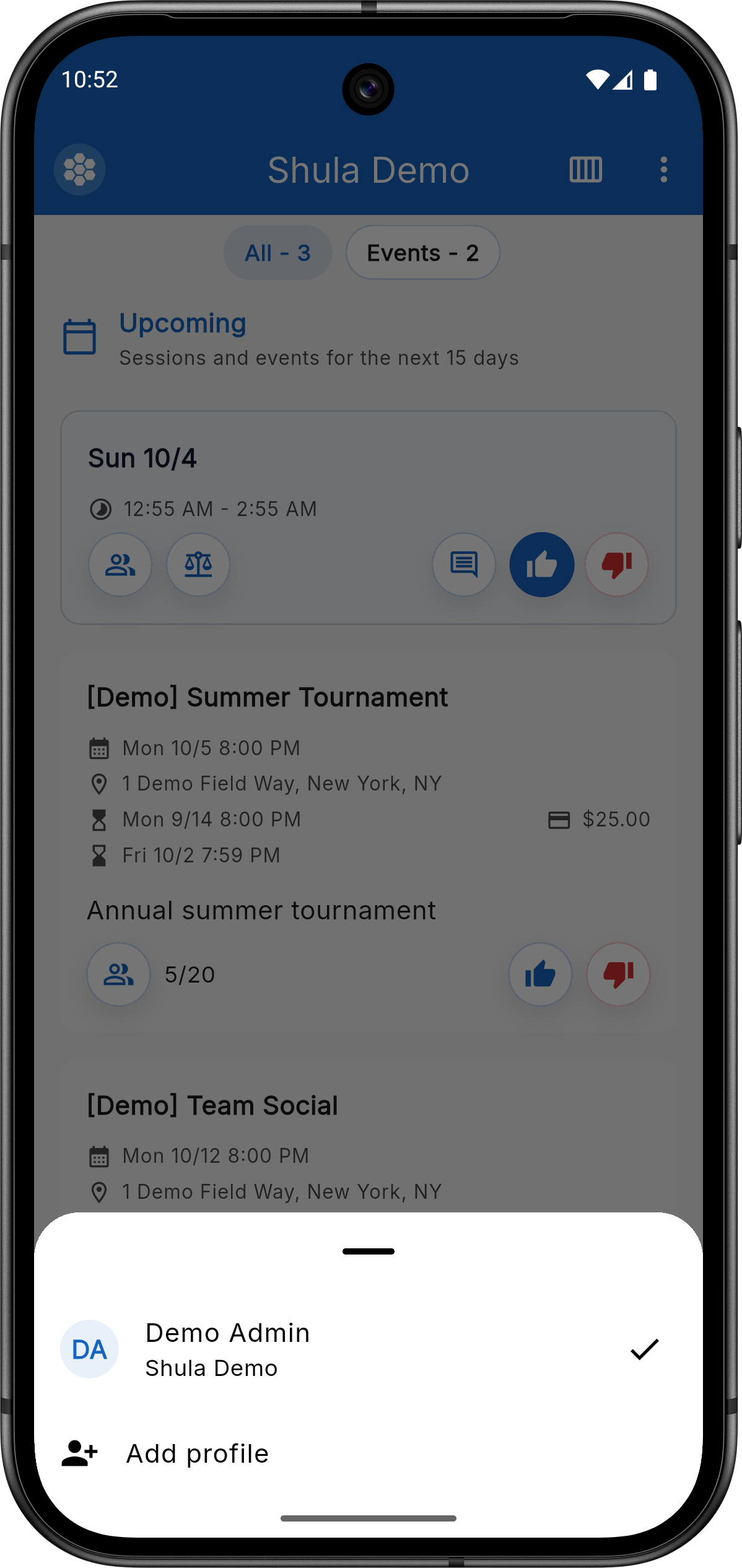
Mobile app — the profile switcher, listing the account's
profiles with their org and the "Add profile" option.
On the web app, the same switcher is the dropdown in the top navigation bar, with + Add a profile as its last option. Switching reloads the page.
If you switch to a profile that isn't a member of the org you were viewing, Shula moves you to that profile's most recently active org and tells you so. The reverse also holds: when you pick an org that your current profile doesn't belong to, but another profile on your account does, Shula asks which of those profiles to switch to ("Switch to …") instead of changing profile silently. In the mobile org list, orgs your current profile isn't in are labelled with the profile you'd enter as ("as Mateo").
Each profile has its own role in each org, so everything in this guide applies to the profile you're currently using. Announcements, for example, reach each profile that is a recipient (see Announcements).
Changing a member's email or moving a profile (admins)
Admins can correct the email of any member in their org, on both the mobile and web apps: open the member from the Members list and edit the Email field. Shula checks that it's a valid address and that no other account already uses it.
If the member's account has more than one profile in your org, Shula asks what you want to do:
- Update user (all profiles) — changes the email of the whole account, so every profile on it follows the new address.
- Move profile to a new user — moves only this profile to a new account that uses the new email. Use this to transfer a profile to a different person, for example when a child gets their own login. The other profiles stay on the original account.
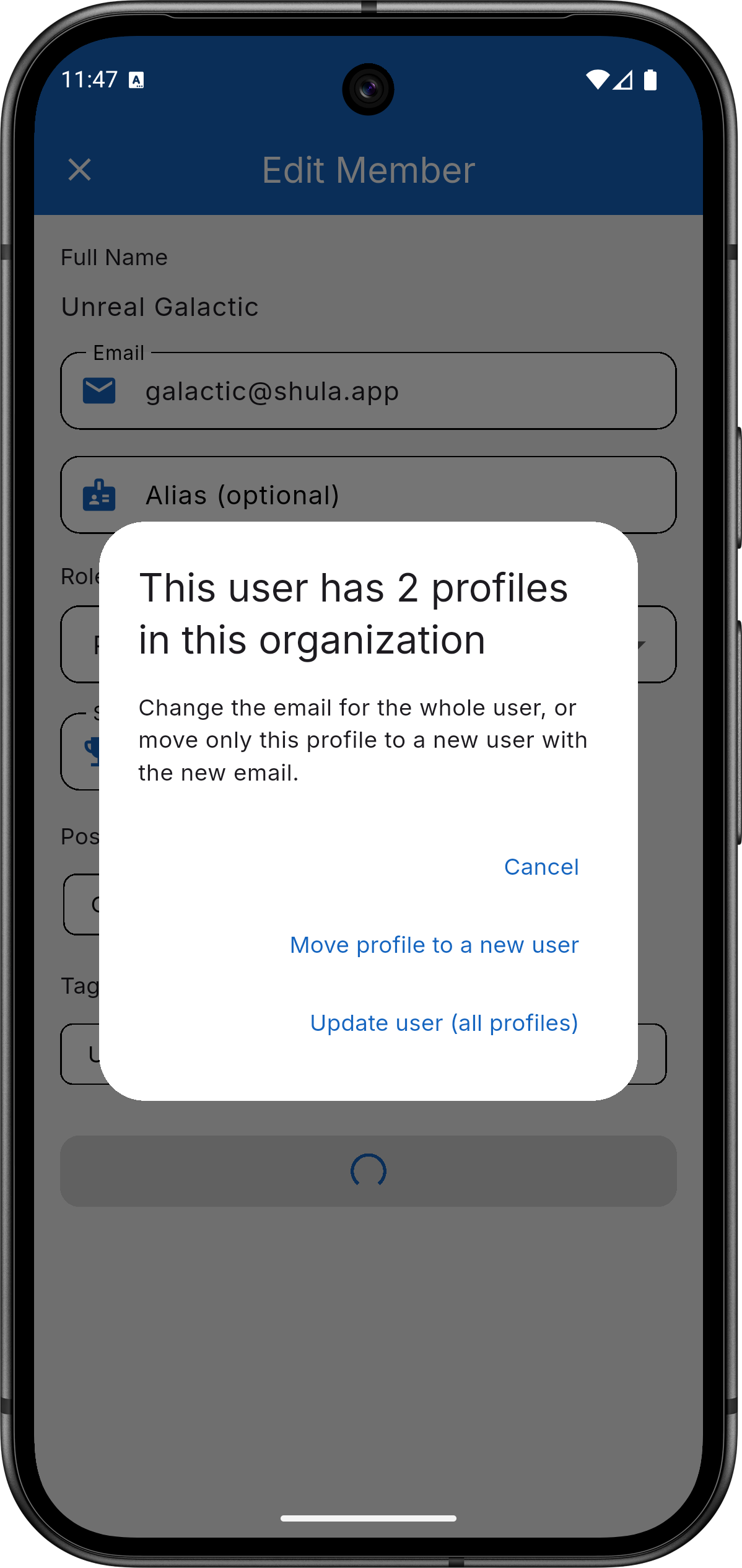
Mobile app — the member edit form's prompt "This user has N
profiles in this organization" with both options.
If the member has only one profile in your org, no question is asked: the email is simply updated.
Two cases can't be done from the app. If the new email already belongs to another account, the change is refused — ask that person to recover their existing account instead. If the profiles being changed also belong to other organizations — for Update user, any profile on the account; for Move profile, the moved profile itself — the email can't be changed from here; write to coach@shula.app and support will change it.
Web vs. mobile
Shula has two clients: a mobile app (iOS/Android) and a web app. They're not equivalent, and which one applies depends on your role:
- Admins can do almost everything from either client — membership plan setup (see Memberships) and announcements now work the same way on both. A few admin tasks are still web-only: bulk-importing members from a CSV file (mobile only supports typing rows in by hand), and exporting a roster or a session's attendance to CSV.
- Players should use the mobile app. The web app is being progressively simplified down to an admin tool — its player-facing pages (My Sessions, My Events, My Memberships, My Transactions, My Account, My Settings) have already been replaced with a screen that points you to download the mobile app instead of showing real content.
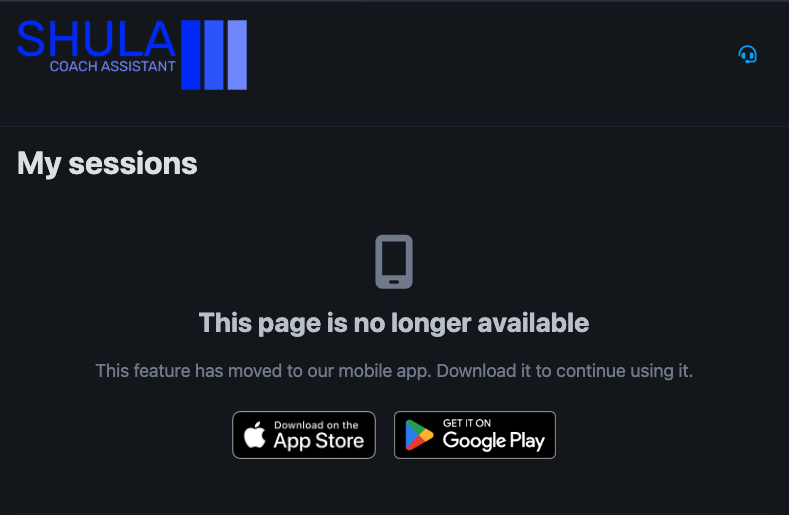
Web app — the "this feature has moved to the app" screen a player
sees when opening any of their own pages (My Sessions, My Events,
etc.), with the App Store / Google Play badges.
Every feature page below calls out which client(s) a given screen actually applies to, since it isn't the same for every feature.
Your balance
Every player has a balance — a running credit that gets debited automatically when they're charged for paid sessions, events, or memberships. Think of it as a running tab with your org rather than something you pay per-item, in the moment. (Check your balance via the mobile app's transaction history screen, not the Profile screen — its Balance line is a known placeholder today.) See Payments for the full picture of how charges, top-ups, and debt work.
Tags and visibility
Admins can tag players (for example, "men" or "women"), and some recurring sessions are restricted to players with a matching tag. If a session isn't restricted, every player in the org can see it; if it is, only players with the right tag can. This is the most common reason a player doesn't see a session on the schedule that a teammate does — see the FAQ for more on this.
What's next
Now that you know the vocabulary, dig into the features: