Recurring Sessions
What it is
A recurring session is a practice, class, or training slot that repeats on a schedule — the regular, ongoing commitment your org runs every week, as opposed to a one-off event. Once an admin sets one up, it keeps appearing on the schedule automatically, on whatever pattern they chose, until they change or end it.
Setting up a recurring session
Admins create a recurring session by filling in:
- Name, start/end time, location, and description
- Price and capacity (the maximum number of attendees)
- Tags — restrict who can see and RSVP to the session to players with a matching tag; leave it untagged and every player in the org can see it
...and by building the repeat pattern itself:
- Frequency — daily, weekly, or monthly
- For a weekly session, which day or days of the week it falls on
- For a monthly session, which occurrence of the month it falls on (for example, "the first Monday")
- How it ends — never, after a set number of occurrences, or on a specific date
Session creation is available on both clients, with the same fields:
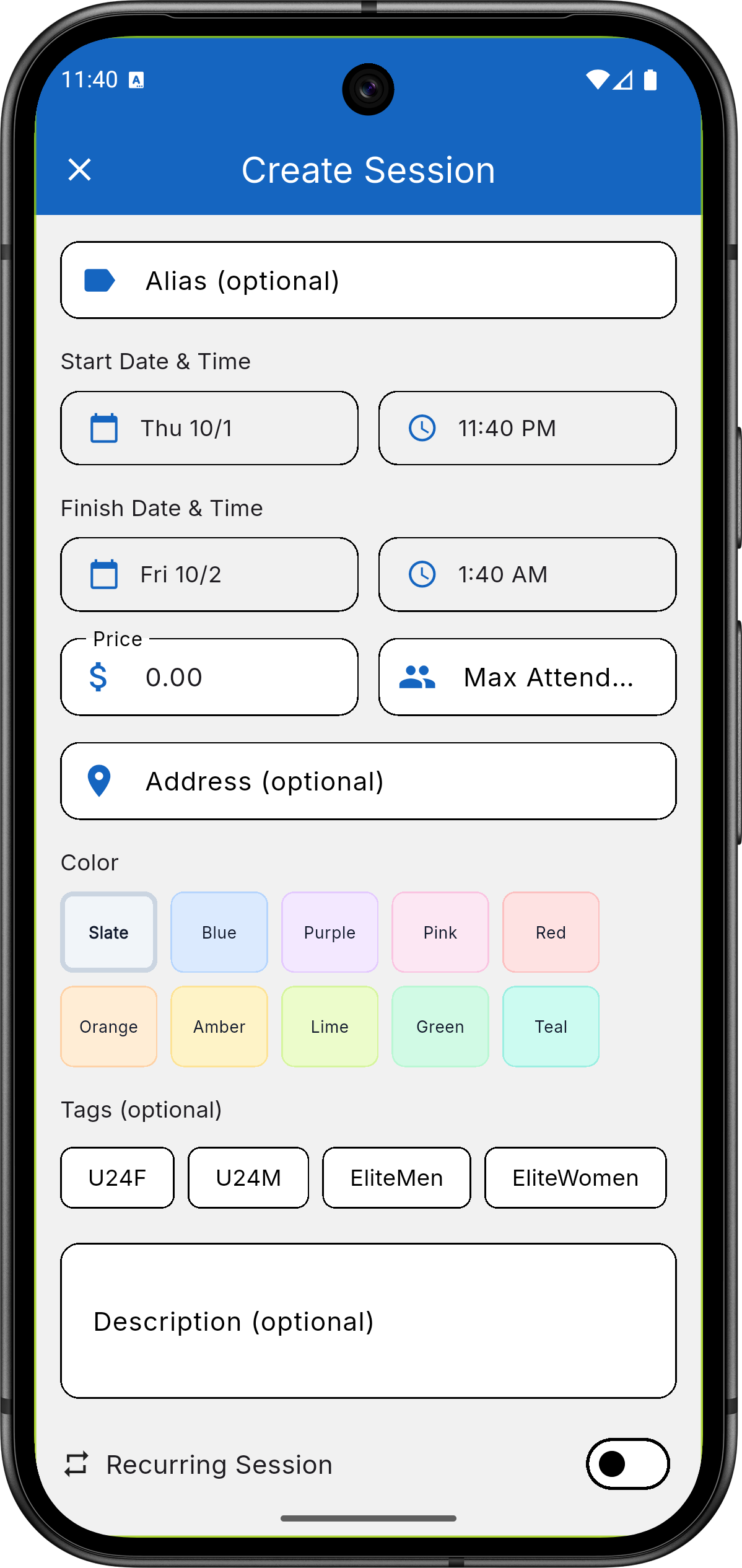
Mobile app — admin creating a recurring session, with the
weekly-pattern builder (days of week and end condition) open.
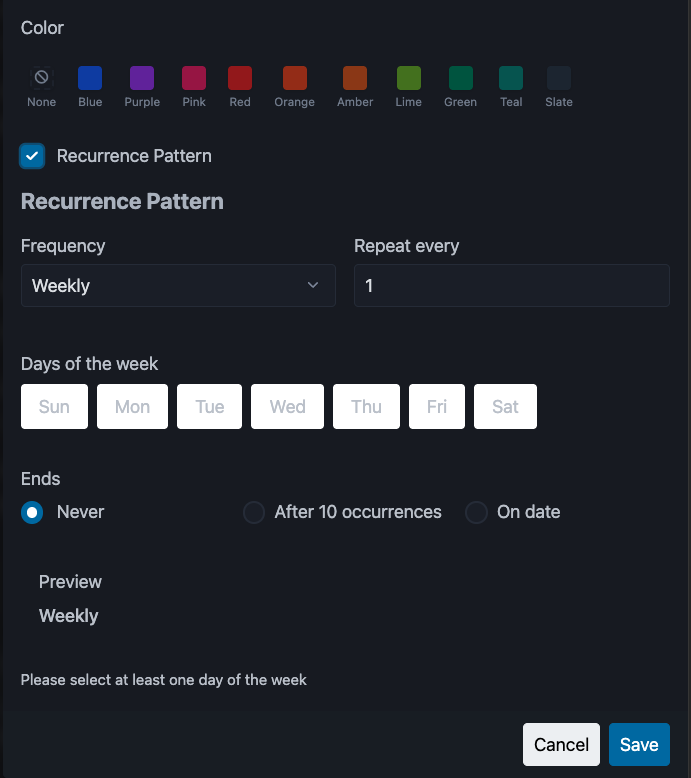
Web app — the same recurring-session form, with the recurring
pattern toggle and builder open.
Once it's set up, the session shows up on the schedule for every future date the pattern produces, so admins don't have to recreate it each week.
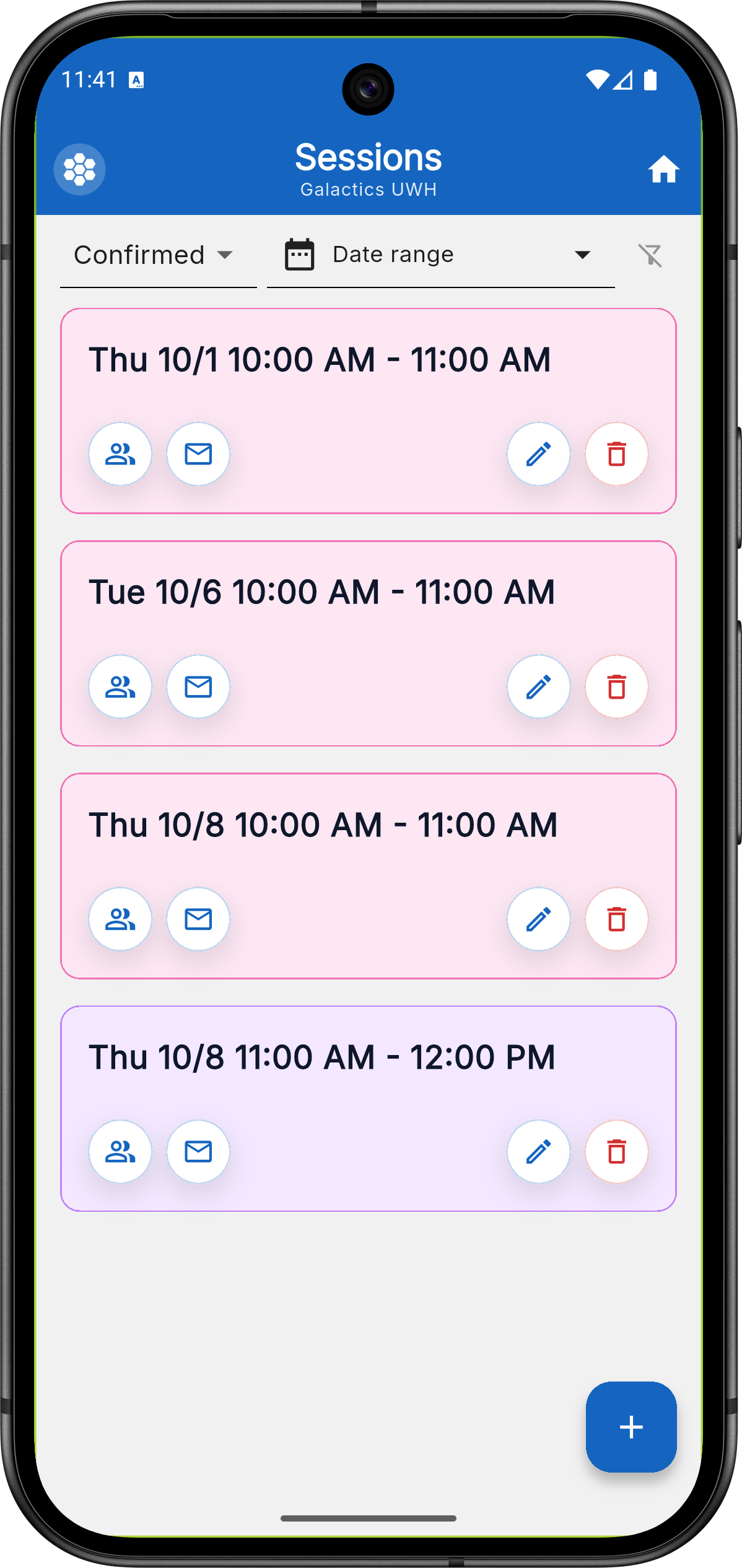
Mobile app — admin's list view of upcoming and recurring sessions.
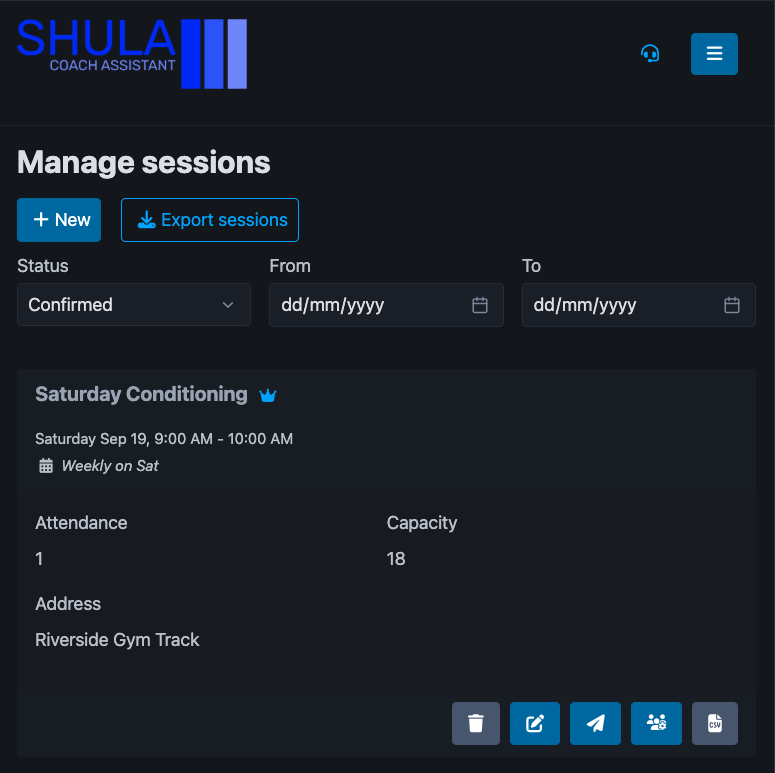
Web app — the "Manage sessions" list, with controls to create a
new session and export the list to CSV.
Editing and canceling occurrences
Because a recurring session produces many dates from one pattern, admins get to choose how far a change reaches. Any time they edit a session, they pick one of three scopes:
- Just this occurrence — change only the one date (for example, moving a single week's practice to a different time)
- This occurrence and all future ones — change everything from this date forward, leaving past occurrences untouched
- The entire series — change every occurrence, past and future
Canceling works the same way, with the same three choices. Canceling a single occurrence doesn't delete the series — it just skips that one date, and the rest of the pattern keeps running. Canceling "from this date forward" or canceling the whole series are separate, explicit choices an admin has to make on purpose.
Making teams
On the mobile app, admins can open the Team Maker from any session to split its attendees into teams, and then send the line-ups to the attendees as an announcement — see Sending teams from the Team Maker.
The player experience
RSVPing is a mobile-only player action today — see Web vs. mobile. Players see the upcoming occurrences of any recurring session they're eligible for — that is, any session that's untagged, or tagged with a tag they have. For each one, they RSVP yes or no, optionally with a note attached.
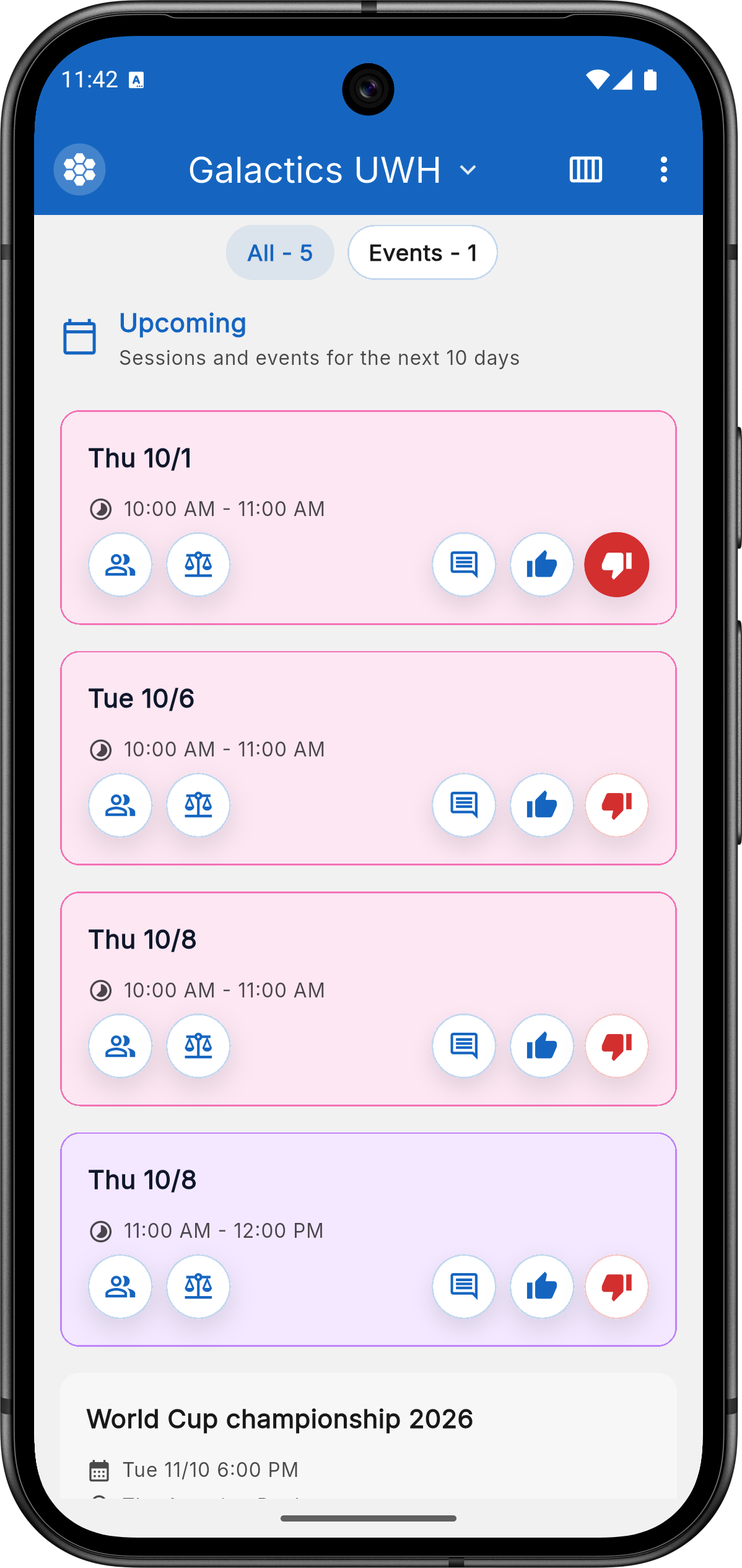
Mobile app — player's upcoming schedule, with RSVP yes/no
controls on each session and event.
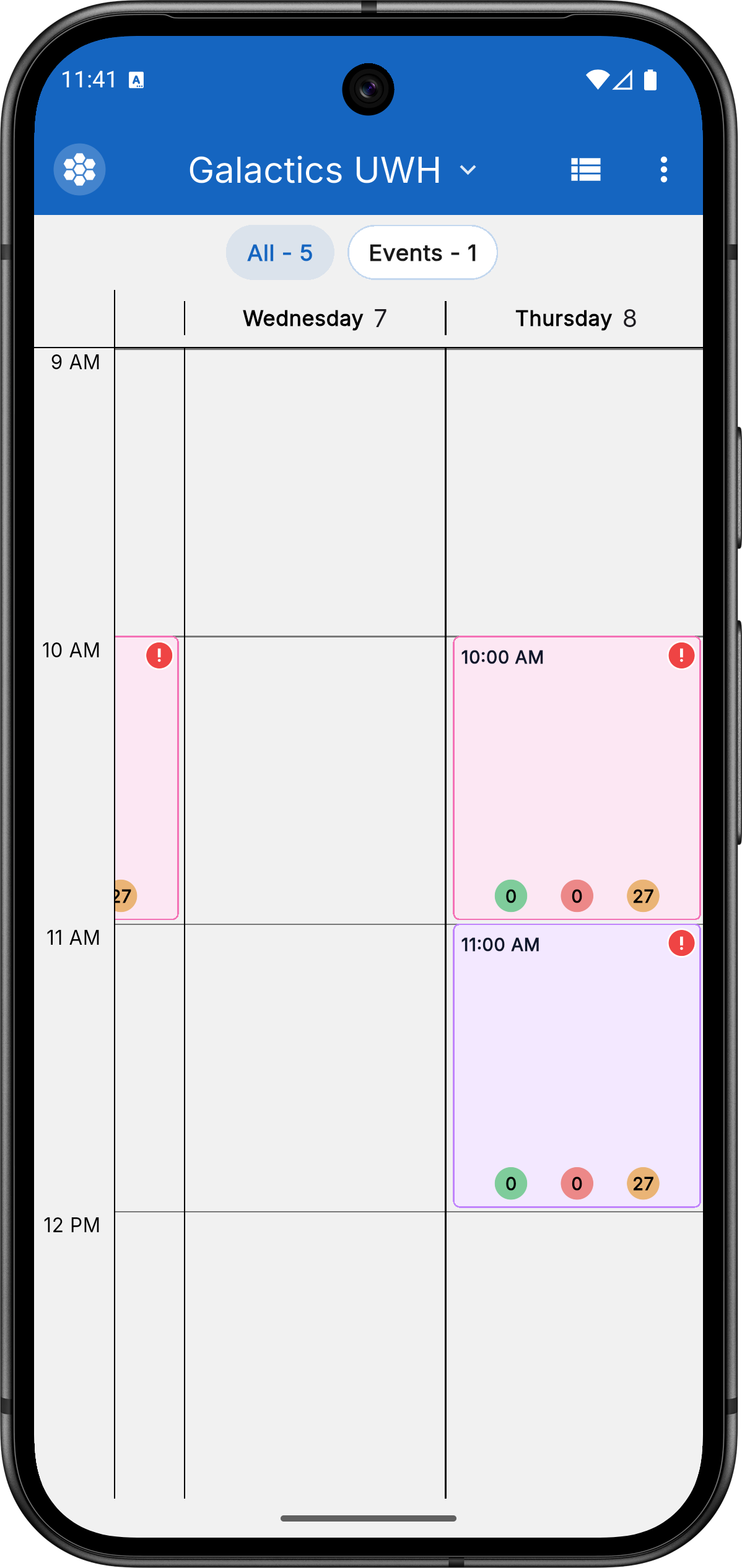
Mobile app — the same schedule in calendar view, showing RSVP
status at a glance.
If your org has memberships or payments enabled, RSVPing to a session may require an active membership or enough balance to cover its price — see Memberships and Payments for how that works. Admins can also message everyone registered for a specific session directly, through Announcements.
Related
- Memberships — plans that can gate RSVP access to sessions.
- Payments — how a session's price gets charged to a player's balance.
- Announcements — messaging everyone registered for a session.