Announcements
What it is
An announcement is a one-way message from admins to members — not a chat, and not something players can reply to. Admins use announcements to tell some or all of their org something, and players read them; there's no reply thread attached.
Composing and managing announcements is available to admins on both clients. Reading them is still a mobile-only player screen today — see Web vs. mobile.
Composing and targeting an announcement
When an admin composes an announcement, they write a title and body and then pick who receives it — the segment. There are five segment types:
- The whole org — every player
- Everyone attending a specific recurring session
- Everyone attending a specific event
- A hand-picked list of individual players
- Everyone with a given tag
The system computes the recipient list from whichever segment the admin picks, and the admin can still add or remove individual people from that computed list before sending — the segment is a starting point, not a lock.
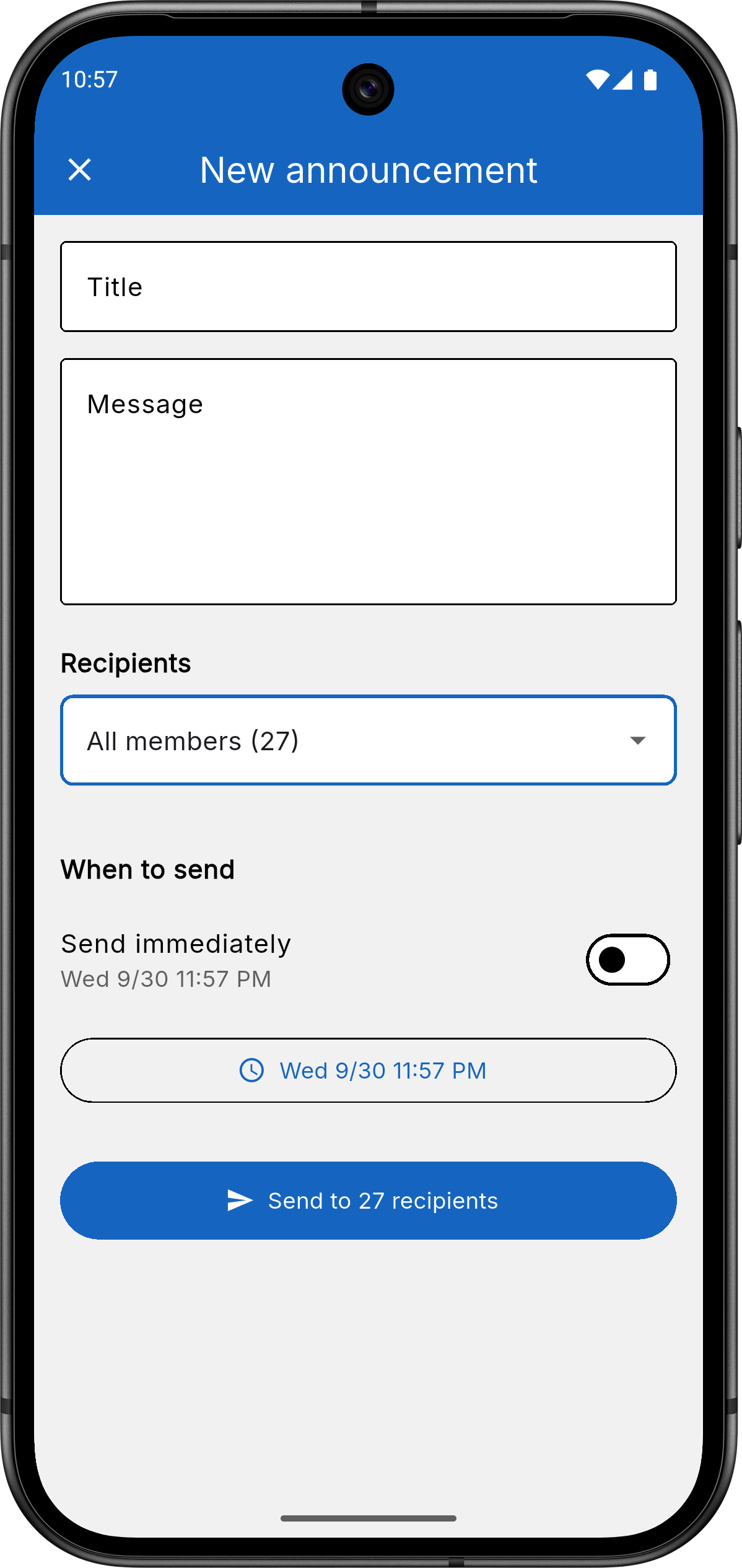
Mobile app — admin composing an announcement, with the recipient
picker and scheduled-send toggle.
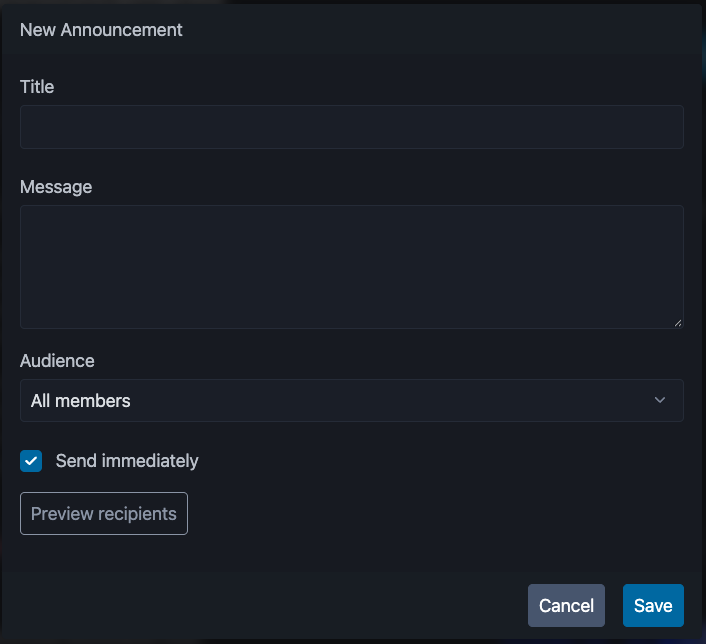
Web app — the same compose form, with the audience picker and a
"Preview recipients" button.
Scheduling, editing, and canceling
Instead of sending an announcement right away, an admin can schedule it for a later time. While it's still pending — scheduled but not yet sent — the admin can edit its title, body, recipients, or scheduled time, or cancel it outright before it ever goes out. Once it sends, none of that is editable anymore.
Sending teams from the Team Maker
Admins who use the Team Maker to split a session's attendees into teams can announce the result without leaving it. The Team Maker is mobile-only and opens from a session (the scale icon on the session card, or Team Maker in the session's top bar).
Once teams are created, open the menu in the Team Maker and choose Send announcement. A sheet opens with:
- a title, pre-filled as "Teams for" plus the session's name or date,
- a body, pre-filled with the generated line-ups,
- the number of recipients, which is everyone attending that session.
Both title and body are editable. Tapping send delivers it right away to the session's attendees, the same as any session-targeted announcement; scheduling isn't offered from here. If nobody is attending the session, Send stays disabled ("No attending players to notify"). It then appears in the usual history and read-receipts views. If no teams have been created yet, the Team Maker asks you to create them first.
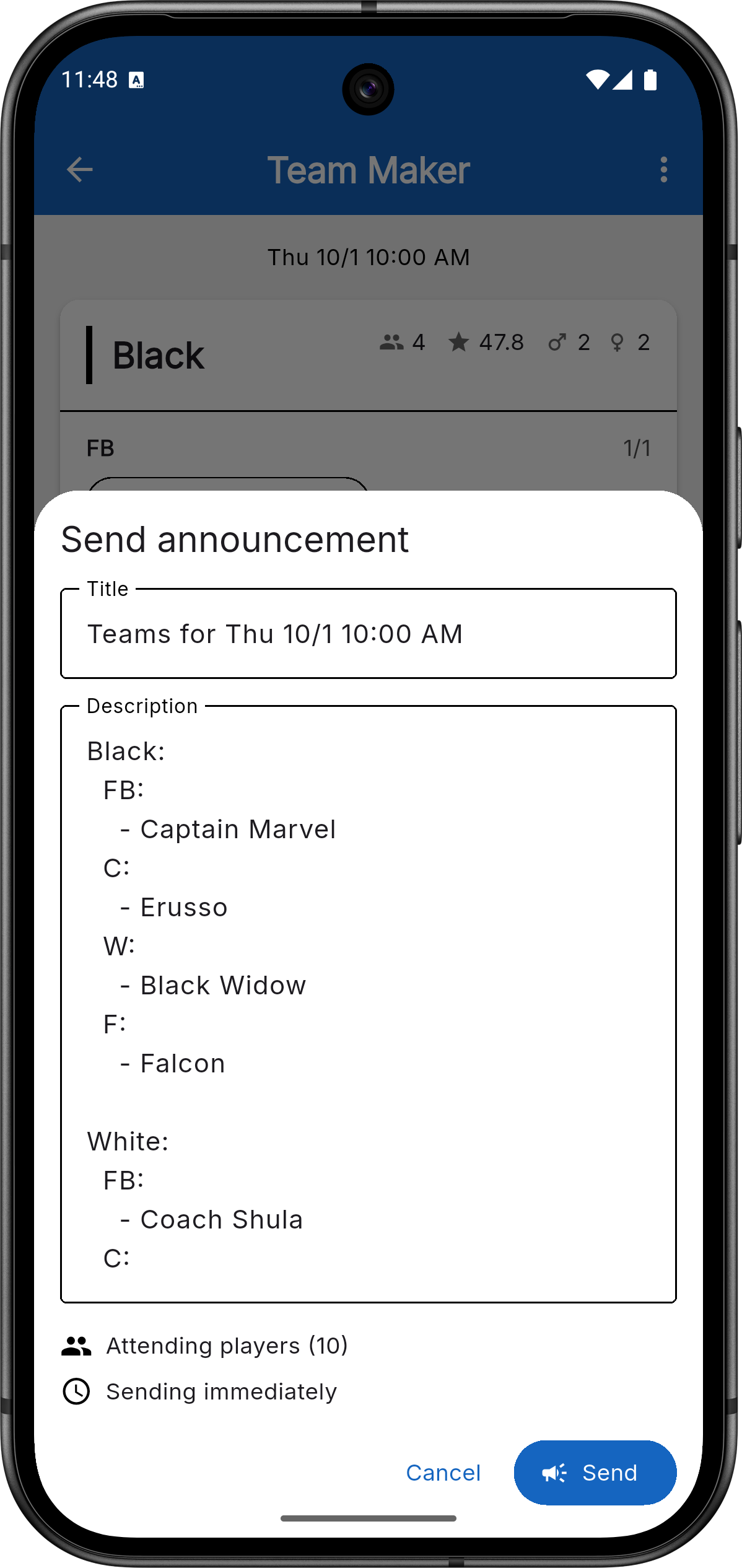
Mobile app — the "Send announcement" sheet opened from the Team
Maker, with the teams pre-filled and the recipient count visible.
The player experience
Players see a running history of announcements they've received, most recent first. Unread announcements are marked with an unread indicator, shown both as a badge in the app's menu and on the app icon itself.
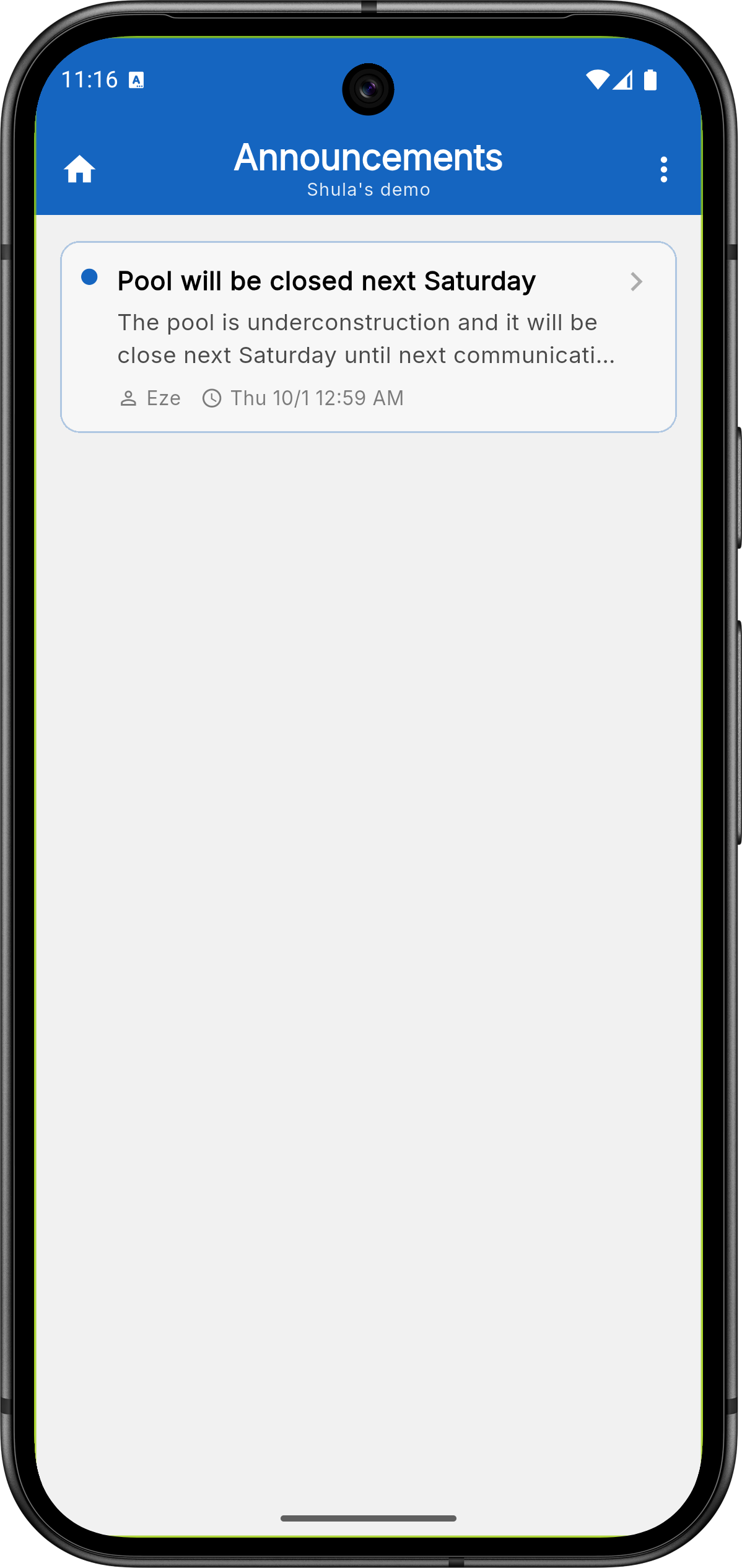
Mobile app — player's announcement history, with an unread
announcement highlighted.
Delivery happens over push notification and email, and each player controls both independently in the app's notification settings — separate toggles for "Announcement push" and "Announcement email," both on by default. A player who turns off one or both channels still shows up in the history feed; they just won't get pinged by that channel.
When one login manages several profiles (for example, a parent and their child), every device signed in with that login receives the push for each of its profiles that is a recipient. The notification text starts with the profile's name — "Mateo: Training moved to 7pm" — so it's clear who it's for. Tapping it in the mobile app offers to switch to that profile.
Tracking delivery and reads
For any announcement they've sent, admins can see how many recipients were reached by push and by email, and a read-receipts list showing who has opened it, along with an overall read rate for the announcement.
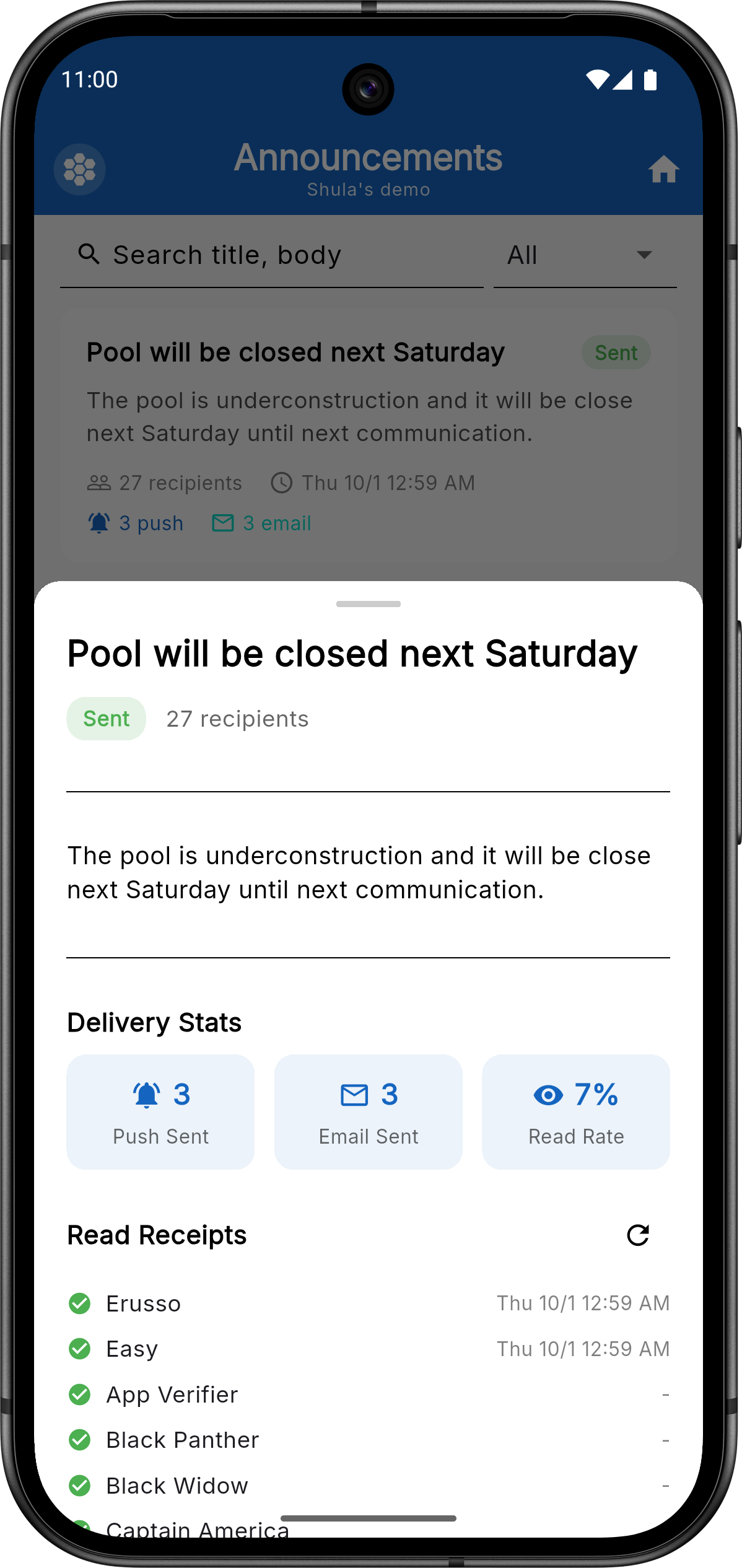
Mobile app — a sent announcement's delivery stats and read
receipts.
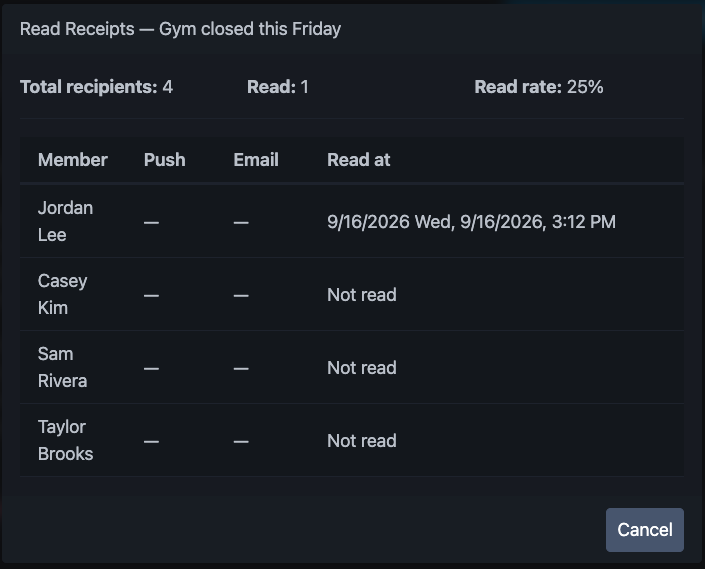
Web app — the same read-receipts view, broken out per recipient
with push/email delivery and read time.
Related
- Recurring Sessions — one of the segment types is everyone attending a specific session.
- Events — one of the segment types is everyone attending a specific event.